
ExtendedSelect for Adobe Illustrator (free)
If you are selling vector images on stock agencies you have to make sure that they do not contain filled open paths, as many stock agencies reject such images.
Since such a functionality is indispensible for my work, I decided to write an ExtendedSelect script.
ExtendedSelect has basically the same functionality as the SelectMenu plugin (with very few exceptions), but offers additional selection options which may be of interest to stock vector artists. For example, you can now search for transparent elements, for paths with gradient or pattern fills, and check for various color types.
And once you have found some open paths in your document, you can immediately close them automatically from within the script!
Since this is not a plugin, but a standard Illustrator Javascript (.jsx) file, it should be compatible with future versions of
Illustrator. (I haven't tested it on Illustrator CS3 and earlier versions, but I expect it to run on older versions as well.
Please drop me a line if you have successfully tested it on an older Illustrator release.)
You can download the script free of charge here:
ExtendedSelect.zip
The script is copyrighted, but free to use. You may modify and distribute it as you wish, but if possible link back to this page.
Instructions for installation:
Unzip the downloaded file and place the ExtendedSelect.jsx file in your Illustrator CS4/Presets/Scripts folder.
(On my Windows Vista Home Premium this is actually "C:\Program Files (x86)\Adobe\Adobe Illustrator CS4\Presets\en_GB\Scripts". You have to copy the file in Admin mode to place it there.)
Restart Illustrator. You should now find the script under "File -> Scripts".
If you don't want to install the script in the presets menu, you can also place the file in some other folder in your file system. You can then run it via "File -> Scripts -> Other Script..." (Ctrl-F12) by navigating to the folder where it is stored.
Using the script:
When the script starts, a dialog pops up:
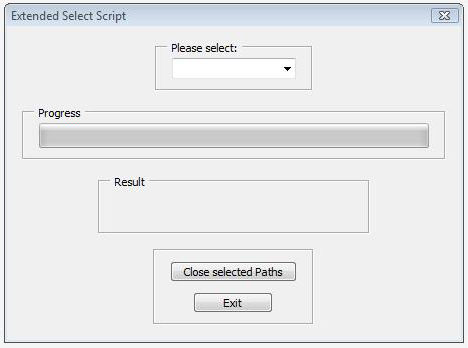
From the drop down box you can select a number of options:
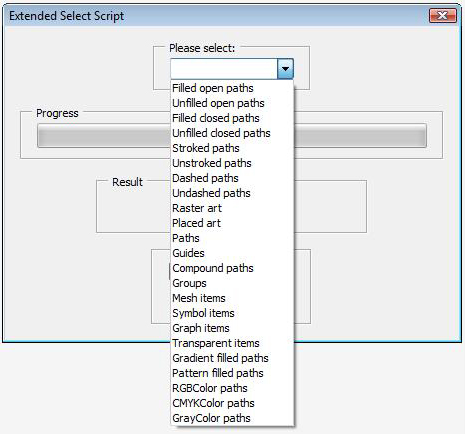
The options should be pretty self-explanatory. Only a few options require some additional explanation:
- Transparent items
The script checks all layers, groups, paths, meshes, placed items, raster items, symbol items, test frames and graph items for opacity values less than 100 and selects them.
- Blending modes
The script checks all layers, groups, paths, meshes, placed items, raster items, symbol items, test frames and graph items for blending modes other than 'normal' and selects them.
- RGBColor paths
The script select all paths having a fill or stroke color of type "RGBColor". Normally the color mode used for newly created colors is determined when you create a document. But sometimes users end up having different color modes mixed in their document. This options allows to find any colors that don't match the documents color mode.
- CMYKColor paths
The script select all paths having a fill or stroke color of type "CMYKColor". Normally the color mode used for newly created colors is determined when you create a document. But sometimes users end up having different color modes mixed in their document. This options allows to find any colors that don't match the documents color mode.
The result box shows you the type and number of items found.
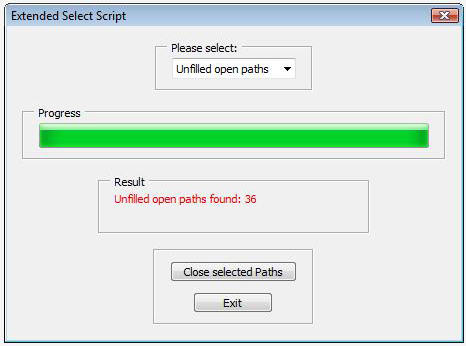
If you have open paths selected, pressing the button "Close selected paths" closes them automatically.
© 2007-2024 Michael Schmeling. All Rights Reserved.